
Images are an essential part of any website, whether you are a professional photographer showcasing your portfolio, a local store displaying products, or a blogger aiming to make your content more dynamic – you use photos.
WordPress, as a CMS, is well aware of this and provides you with the ability to use images in your blog or on web pages. The native WordPress image gallery allows users to upload images to the media library and easily place them on a page.
Although you can add a gallery, the native WordPress gallery has very limited functionality and lacks many features, including ready-made lightboxes.
Fortunately, WordPress is extendable, and the WordPress plugin ecosystem is full of options. In fact, there are so many gallery plugins, many with similar features, that the vast array of choices can leave users feeling overwhelmed.
FooGallery
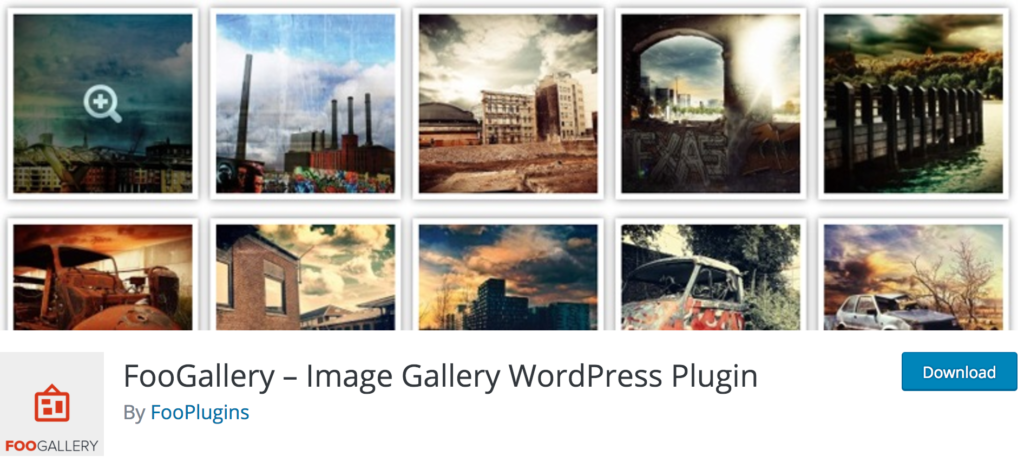
FooGallery is simple to use and highly extensible.
It is easy to use in the sense that if you know how to use one gallery plugin, you can use them all (except, perhaps, NextGen, but we’ll get there). The logic is usually the same: the plugin creates an entry in the toolbar menu, you create a gallery there, choose your parameters, and get a shortcode that you can use to insert your gallery into any post or page.
Extensibility is what I personally love about FooGallery. The basic installation is just that: basic. You can create a gallery grid, a Masonry grid (which is a Pinterest-style layout), a simple responsive gallery, and more. However, that’s about it. No lightbox, no albums in the gallery, not as many options as we see in other more comprehensive solutions.
But FooGallery doesn’t actually lack these features. The options are there, just not activated. All you need to do is activate the desired features. For example, the FooBox extension provides a lightbox overlay to showcase your images. There are plenty of extensions, both free and premium, that you can install to add functionality, ready-made gallery templates, and much more.
Moreover, the good folks at FooGallery have created a generator template to build your own FooGallery plugin. You can modify and override absolutely everything, starting from how FooGallery works by default. Any developer who has been frustrated in the past trying to tame a plugin to do what they want can understand why this is an awesome feature.
Unite Gallery Lite
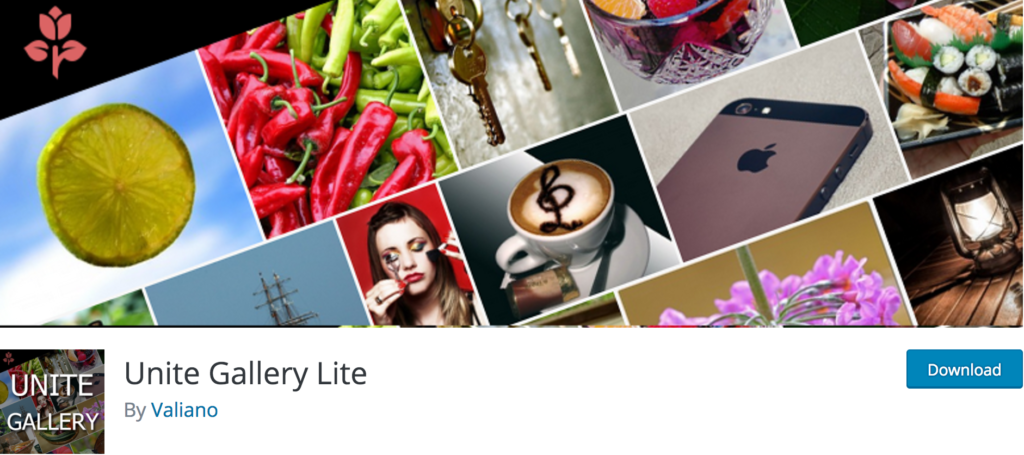
Interesting Plugin: Unite Gallery Lite
Unite Gallery Lite is an intriguing plugin with many customization options. You can create a gallery as usual and leave the settings at their defaults, or you can play around with the settings to fine-tune the design.
You can configure your grid as you wish, specify the gallery and field positions, customize everything from the displayed text, titles, descriptions, and more. The included lightbox also offers numerous parameters for customization.
Curious about what you can achieve with Unite Gallery Lite? Check out the demo pages. You can showcase your photos in various ways, from tile displays to grids, sliders, and thumbnail carousels. Just envision how you want your gallery to appear, and you’ll likely find a suitable solution.
From a developer’s perspective, Unite Gallery Lite also features a very useful function. You can write your own snippets of CSS or JavaScript right there in the toolbar and override the defaults. As a developer, you might do this in a custom .css and .js file anyway, but this allows you to separate the plugin’s style from the theme’s CSS and JS.
Justified Gallery
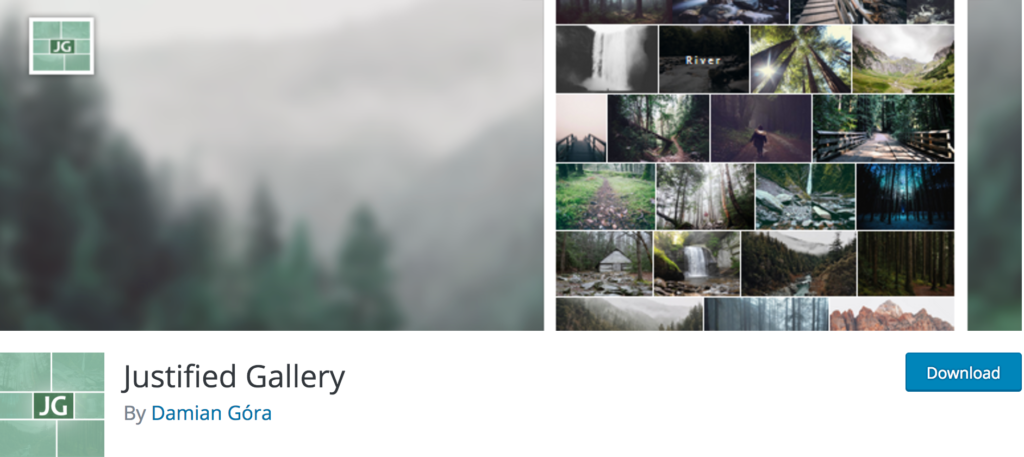
The demo page is quite impressive. Take note of the image flipping headline, the “Lightboxes” page with gallery thumbnails at the bottom and a menu with labels at the top. Also, observe how the images are justified, with rows of equal height – a feature often overlooked by many plugins.
This plugin triggers the jQuery Mouse Wheel Plugin scroll event. In the “Lightbox” mode, you can navigate to the next image using the scroll, a behavior that I would like to see in other plugins. They also offer transitions and some animation effects.
What makes this plugin particularly interesting is that it utilizes the native WordPress gallery. You don’t have a separate menu where you need to create your gallery and copy the shortcode; it’s all done right there in the “Add Media” option. If you use the native WordPress gallery and add this plugin, all your galleries in previous posts will incorporate its features.