In web design and website creation, everyone uses icons.
It’s unlikely that anyone will dispute the popularity of Font Awesome in creating a website interface.
but there are situations when you have created a small landing page (2-3 screens) and you need to insert a couple of icons of social networks Facebook, Twitter, Instagram. I think adding Font Awesome for 3 icons would be unreasonable.
There are several powerful tools like IcoMoon that simplify the process and convert vector icons to web fonts.
Let’s try to use it to select several symbols we need and “screw” them to our project.
To do this, go to the address where the IcoMoon service is located and go to the Application section on it
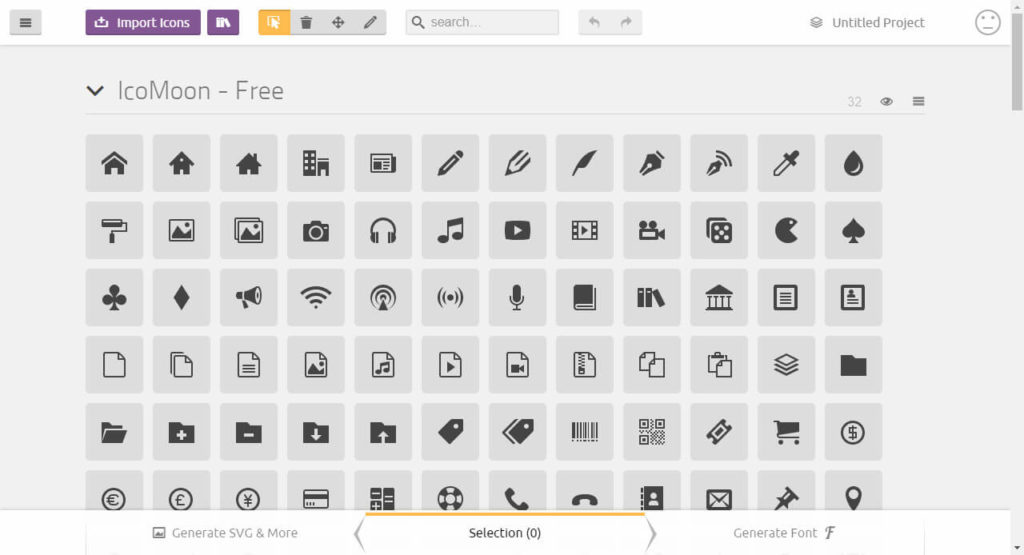
Next, select the necessary icons.
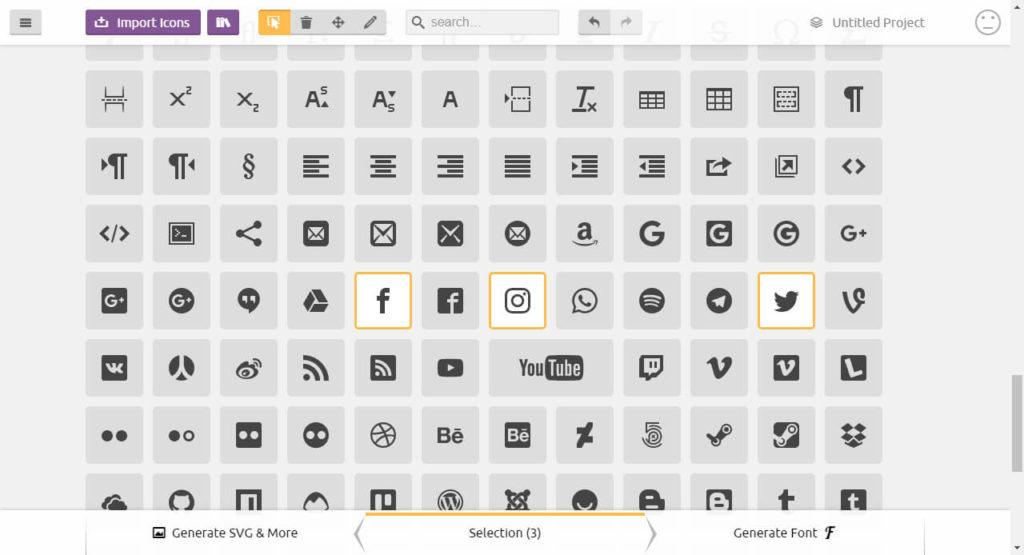
When the desired icon set is selected,
go to the bottom of the page and click the button at the bottom Generate Font (bottom button on the right).
An intermediate window will open, which presents a list of all icons selected for downloading and their characteristics.
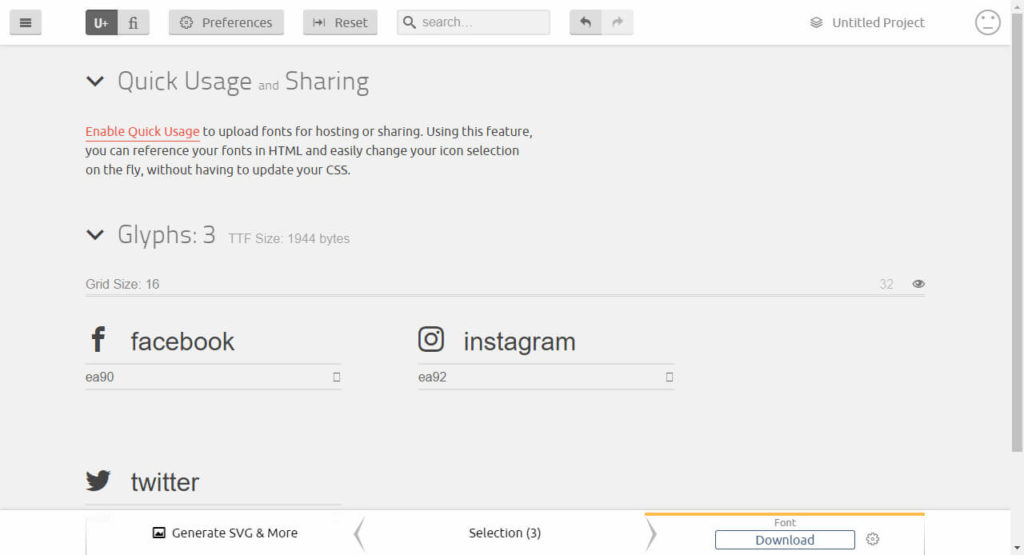
Here you can also edit the necessary icons – name, code, and so on.
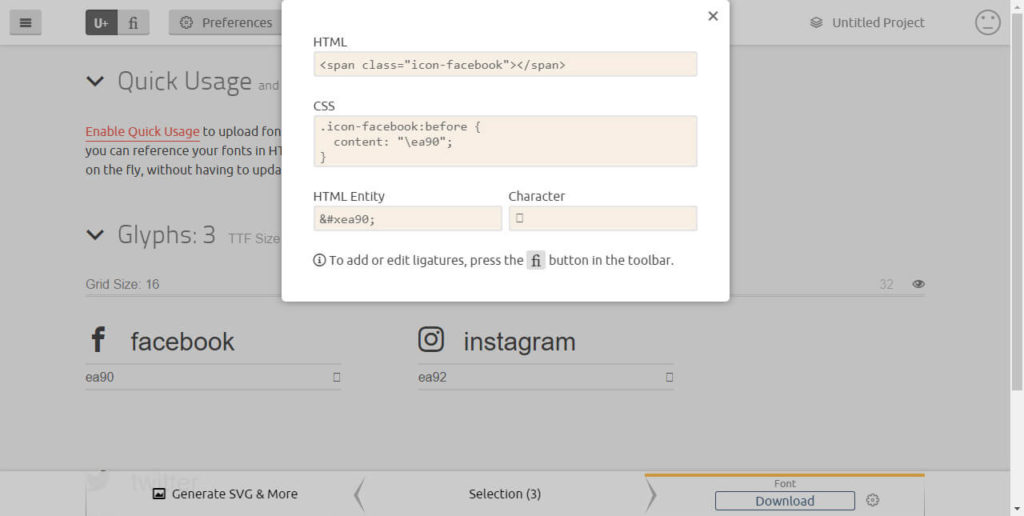
If everything is satisfactory, click the Download button to download the selected set as an archive.
After unpacking the archive, we will need a folder named fonts and style.css.

We simply transfer the directory with all its contents into the project, and open the style.css file in an HTML editor,

These lines of code are ordinary – here the downloaded fonts are connected.
If necessary, change the path to the files.
As you can see from the code, icons can be edited very easily through CSS rules.

So we got acquainted with font icons using the IcoMoon service. It turned out to be simple and pleasant to work with